

Money Management Monitor is a MetaTrader 5 Indicator that brings account data, trading performance, and risk values onto one chart so you can check your position before opening a trade and review the result afterwards.
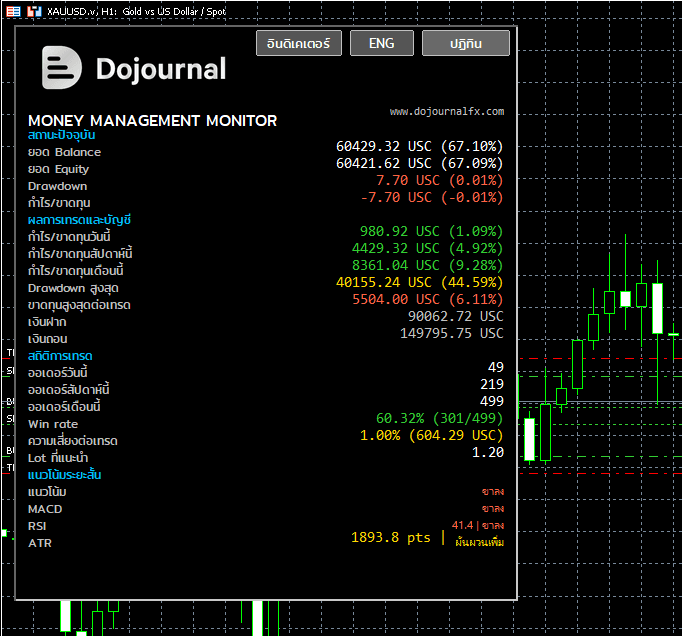
What Money Management Monitor shows
- Live: account Balance, Equity, current Drawdown, and floating P/L from open positions.
- Performance Account: Today, This week, and This month P/L, plus Max drawdown, Max loss / trade, Deposit, and Withdraw.
- Trading Statistics: order counts and Win rate for the current month.
- Money Management: risk per trade as a percentage, the money amount at risk, and Suggested lot based on Stop Loss and the symbol's trading rules.
- Short-term Trend: Trend, MACD, RSI, and ATR as context, not automatic Buy or Sell signals.
1. Install Money Management Monitor on MetaTrader 5
- Download MT5_Money_Management_Monitor.ex5 from this article's attachment section.
- Open MT5 and choose File > Open Data Folder.
- Open MQL5 > Indicators.
- Copy the .ex5 file into the Indicators folder. The .mq5 source file is not required.
- Return to MT5, open Navigator, right-click Indicators > Refresh, or restart MT5.
2. Attach the Indicator to a chart
- Open the chart symbol you want to monitor, such as XAUUSD or the pair you trade.
- In Navigator, open Indicators and drag Money Management Monitor onto the chart.
- Choose English or Thai and set the panel corner in InpPanelCorner.
- Adjust InpPanelX, InpPanelY, InpPanelWidth, and InpPanelHeight so the panel does not cover candles or important chart objects.
- Select OK and check that Balance, Equity, and account data appear as expected.
3. Set the Money Management inputs
Risk per trade is calculated from Balance × InpRiskPercent ÷ 100. Suggested lot uses the risk amount, Stop Loss distance, and the symbol's tick value, then rounds down to the Volume step and returns no lot when the result is below the broker's Minimum lot.
- InpRiskPercent: the percentage of Balance you plan to risk per trade. It is a planning limit, not a guarantee of the maximum loss.
- InpStopLossPoints: Stop Loss distance in Points, not Pips. Check the symbol's decimals and Point size before using it.
- InpCurrentSymbolOnly: choose whether history is limited to the chart symbol or includes every symbol.
- InpMagicNumber: 0 includes every Magic number; another value filters history to that Magic number.
- Check Suggested lot against Minimum lot, Volume step, Maximum lot, Contract size, and broker Margin before sending a live order.
4. Read the values to review risk
- Compare Equity with Balance to see floating P/L and current Drawdown from open positions.
- Use Max drawdown and Max loss / trade to check whether actual results have been worse than your planned limits.
- Review Today, This week, and This month P/L to spot unusual changes in performance or order count.
- Do not judge a system by Win rate alone. Win rate does not show average profit, average loss, or the risk of the next trade.
5. Make the Monitor part of your trading routine
- Before a trade: check Balance, Equity, Drawdown, and Risk / trade against your plan.
- While a trade is open: use floating P/L and Trend, RSI, MACD, and ATR as context, not as a Buy or Sell instruction.
- At the end of the day: record Today P/L, order count, Win rate, and Max loss to find repeatable behaviour.
- When changing symbol or broker: recheck Point size, Tick value, Volume step, and Margin.
These values come from the account and trading history. They are not investment advice and do not guarantee profit. Test on Demo, confirm broker conditions, and define an acceptable stop-loss limit before using real money.
6. Pre-live checklist
- Test the Indicator on Demo and verify that Balance, Equity, P/L, and history change with the account data.
- Confirm that InpCurrentSymbolOnly and InpMagicNumber match the scope you want to analyse.
- Check InpStopLossPoints, Tick value, Minimum lot, Volume step, and broker Margin for the actual symbol.
- Test during volatile conditions and check Journal/Experts if a value is N/A or different from what you expect.
- Define a stop-trading plan for when Drawdown or cumulative loss exceeds the level you can accept.
7. Download the usable file
This article's attachment is MT5_Money_Management_Monitor.ex5 for MetaTrader 5 only. Source code is not distributed. Downloads require signing in and having an MT5 account connected to Dojournal.
Sources
ทีมบรรณาธิการ Dojournal ตรวจขั้นตอนจากไฟล์ที่เผยแพร่ หน้าตา MetaTrader 5 และเอกสารแพลตฟอร์มที่เกี่ยวข้อง เนื้อหานี้เป็นข้อมูลเพื่อการศึกษา ควรทดสอบบน Demo และตรวจเงื่อนไขของโบรกเกอร์ก่อนใช้เงินจริง
- MetaTrader 5 file locations and Auto Trading
- MetaTrader 5 trading history reports
- MetaTrader 5 account information
Reviewed and maintained by Dojournal Editorial Team