
This guide explains how to install and use the Dojournal Martingale EA, including the adjustable MT5 Inputs and the Money Management decisions to consider before using it live.
Martingale systems carry high risk because lot size increases as price moves against the position. The defaults are only a starting point for testing, not a recommendation for every account. Start with Demo or a small account where the possible loss is acceptable.
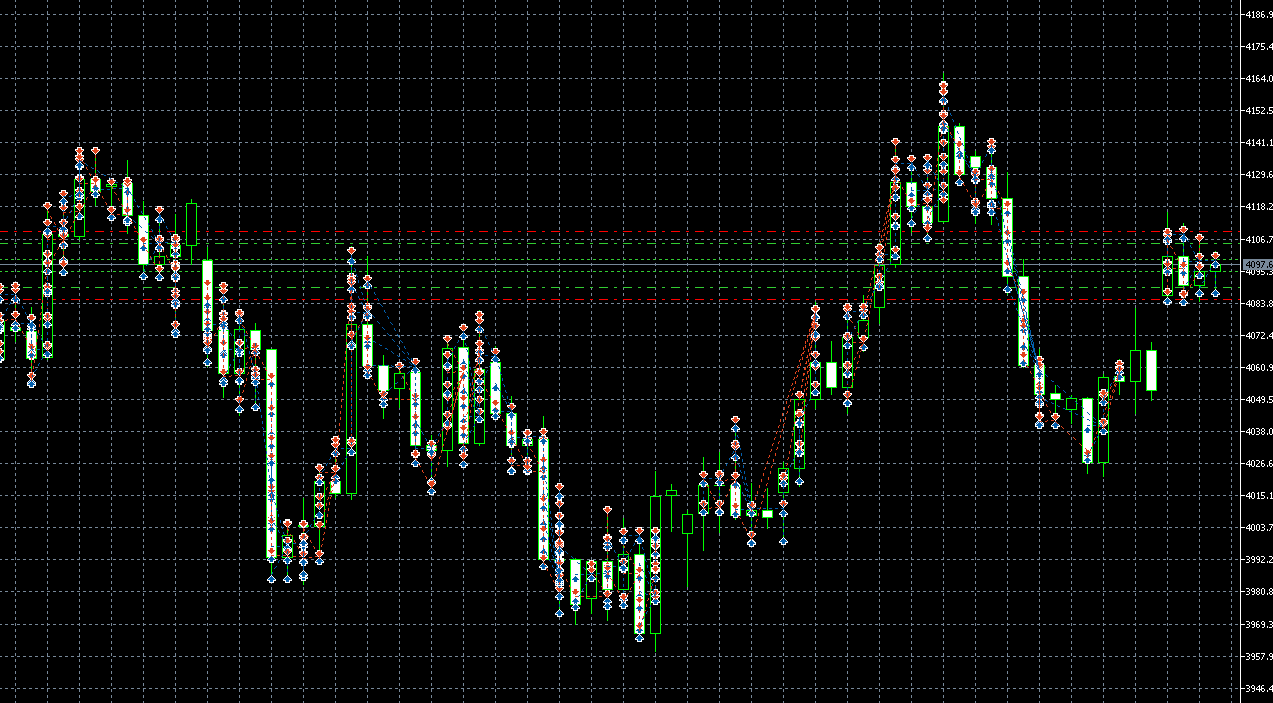
1. Install the EA on MetaTrader 5
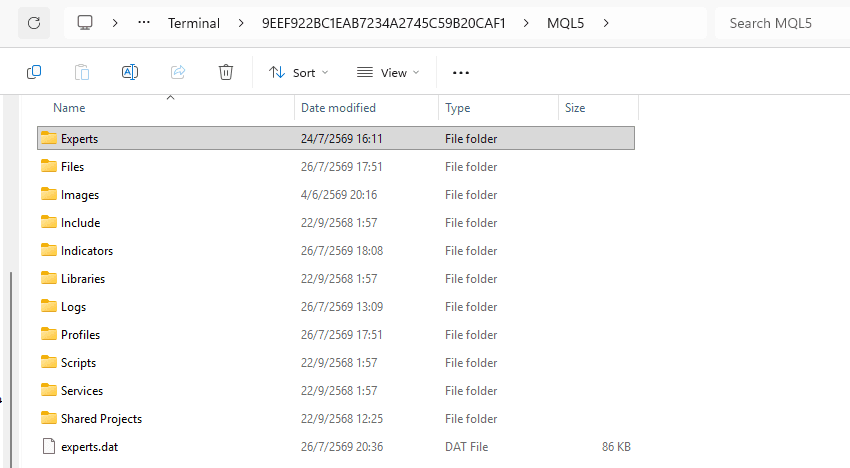
- Download dojournal-martingale-ea.ex5 from this article's attachment section.
- Open MT5 and choose File > Open Data Folder.
- Open MQL5 > Experts.
- Copy the .ex5 file into the Experts folder. The .mq5 source file is not required.
- Return to MT5, open Navigator, right-click Expert Advisors > Refresh, or restart MT5.
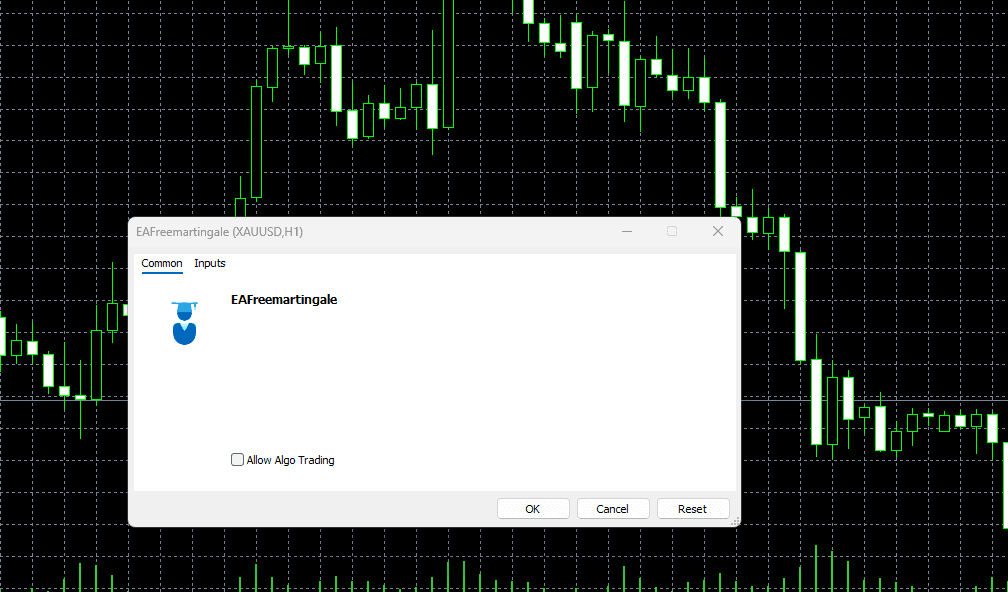
2. Attach the EA to a chart and enable Algo Trading
- Open the symbol chart you want to test and confirm that the account is a Demo or a designated test account.
- Drag Dojournal Martingale EA from Navigator > Expert Advisors onto the chart.
- Enable Algo Trading according to your account and broker conditions.
- Review the symbol, contract size, spread, and Inputs before selecting OK.
- Check that the EA HUD appears on the chart. Do not run duplicate instances across charts without a separate risk plan.
3. Understand the operating modes
TwosidetradeMode is the EA's main mode switch. When true, it runs in Two-side mode and can hold Buy and Sell positions on the same symbol. When false, it runs in One-side mode, using EMA 50, EMA 200, and RSI 14 on M15 as part of its signal conditions.
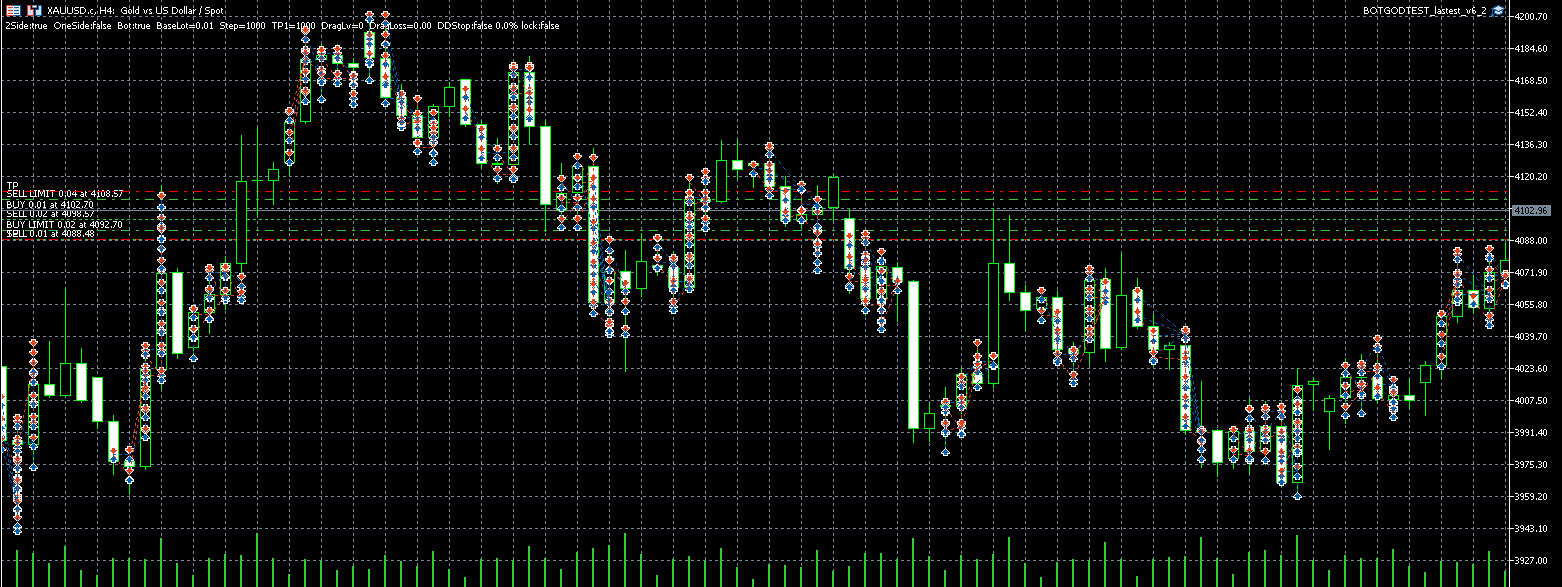
- Two-side: the system initially attempts to open one Buy and one Sell, then places Pending orders at the configured Step levels.
- One-side: when there is no position, the system reads closed M15 candles and opens Buy or Sell when the conditions are met.
- Additional entries use Pending orders. They are filled when price reaches the configured level rather than being sent as immediate Market orders.
- Accounts that need Buy and Sell at the same time should support Hedging. Netting accounts may not support the same Two-side behaviour.
4. Understand the adjustable Inputs
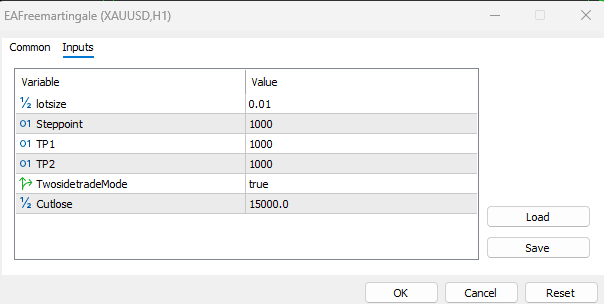
The file defaults are lotsize 0.01, Steppoint 1000, TP1 1000, TP2 1000, TwosidetradeMode = true, and Cutlose 15000. Use these as a testing starting point only. Do not use them live without calculating the account's Margin and Max Loss.
- lotsize: starting Lot for each side. Start with the broker's minimum Lot and do not increase it simply to seek faster profit.
- Steppoint: distance between additional-entry levels in Points. A smaller value adds levels more frequently; a larger value leaves more room but accepts a larger adverse move.
- TP1: basket profit target in Points. In this file, TP1 is the important value because the core logic uses it to set TP for held positions.
- TP2: visible in Inputs and the HUD, but keep the default in this version until additional-entry behaviour has been verified on Demo.
- TwosidetradeMode: true for Two-side and false for One-side. Choose based on account type and acceptable risk.
- Cutlose: maximum total floating loss that triggers the EA to close orders. 15000 is an account-currency amount, not a percentage, and is not suitable for every account.
5. Money Management for a Martingale system
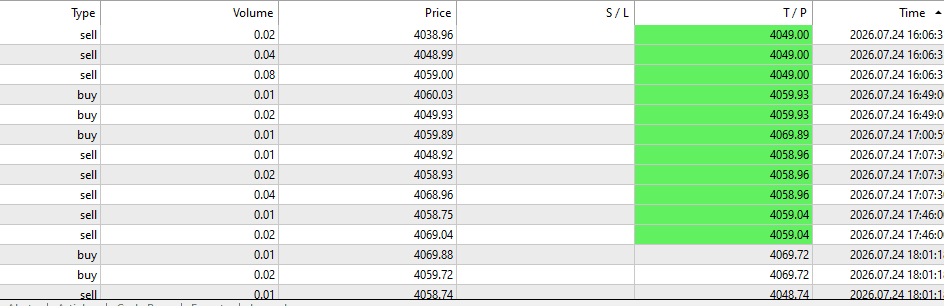
Multiplying Lot size makes risk grow much faster than the first position suggests. For example, 0.01 can become 0.02, 0.04, 0.08, and continue increasing by level. Choose Lot size from the total risk if price never reverses, not only from the first position's profit.
- Set a maximum loss per basket before choosing lotsize and Cutlose.
- Start with the minimum Lot, test with historical data and Demo, and check the Margin required for multiple additional levels.
- Do not reduce Steppoint just to recover positions faster; levels will be added more closely and Margin will be used faster.
- Do not increase lotsize to recover a previous loss. Lot increases should come only from a pre-calculated risk plan.
- Define a system stop and check that Cutlose is not higher than the amount the account can afford to lose.
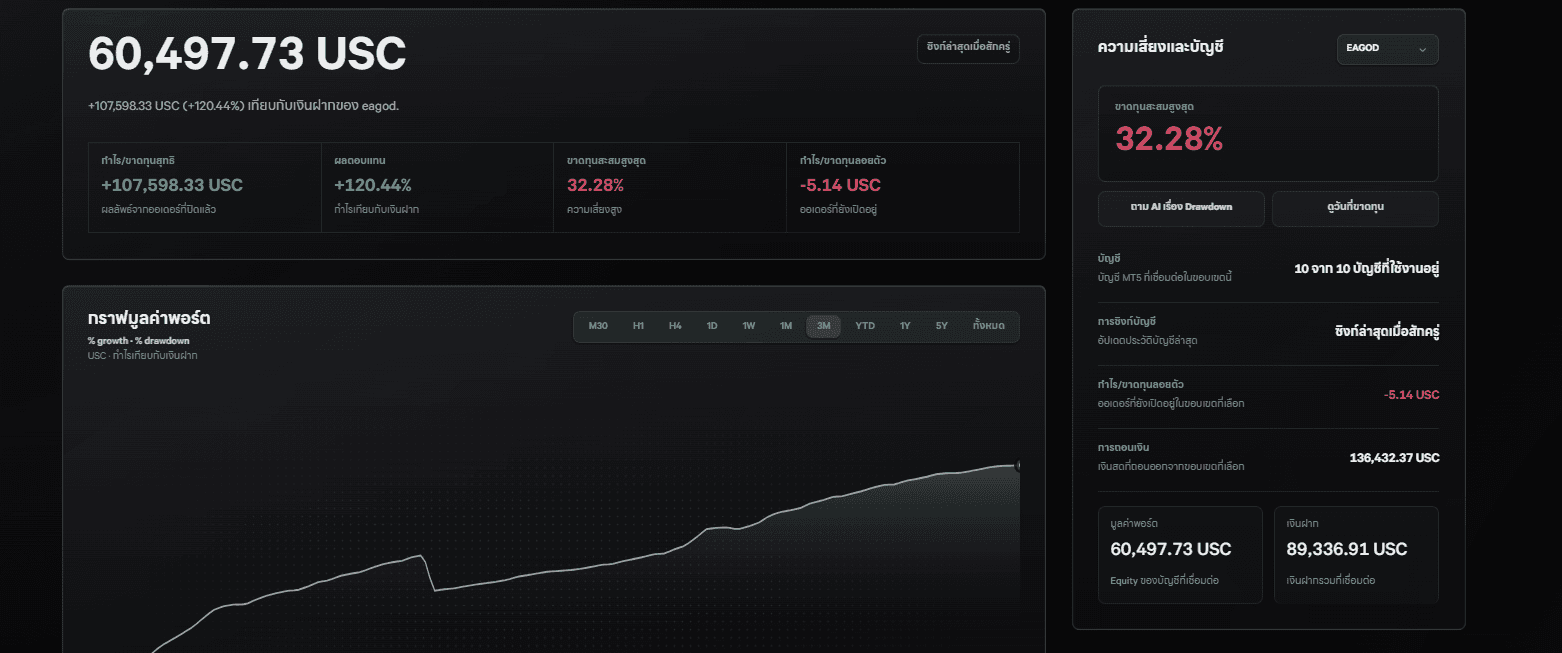
- Monitor % Drawdown, Balance, and Equity in the Dojournal Dashboard. Use 50% as a warning line and do not allow Drawdown to exceed 50%.
- For this package, 15,000–25,000 can be a starting reference for Cutlose in account currency, not a percentage DDStop value.
- DDStop in the code is a percentage limit and is not exposed as an Input in the distributed file. Set it in relation to the account's Balance/Equity; do not enter 15,000–25,000 as a percentage.
6. Pre-live checklist
- Test on Demo during volatile market conditions, not only during periods with favourable results.
- Confirm the broker's Symbol, Contract Size, Point, Minimum Lot, Lot Step, and Margin match your plan.
- Check Spread because the EA stops operating when spread exceeds the internal limit.
- Confirm that the account supports the selected mode, especially Two-side mode which expects Hedging behaviour.
- Do not run multiple EAs on the same symbol without understanding order separation and combined risk.
- Set a loss-stop plan and accept that a Martingale system can suffer a large loss if price continues without reversing.
7. Download the usable file
The attachment is the .ex5 file for MT5 only. Source code is not distributed. Read the warning and prepare a Demo account before downloading and testing it.
Sources
The Dojournal editorial team checked the steps against the published file, the MetaTrader 5 interface, and primary platform documentation. Test the tool on a demo account and confirm broker conditions before real-money use.
- MetaTrader 5 file locations for EAs and indicators
- Running EAs and indicators in MetaTrader 5
- MetaTrader 5 Strategy Tester documentation
Reviewed and maintained by Dojournal Editorial Team